Shopify Integration Guide – aCuotaz
This guide explains how to install aCuotaz as a payment method on your Shopify store. You do not need to write code. You install the app, paste the credentials aCuotaz gives you, and finish in the Shopify payment settings.
1. Prerequisites
Before you start, make sure you have:
- A Shopify store where you are allowed to install apps.
- The admin account of that store. The install screen asks you to pick a store: choose the one you are integrating.
- The Client ID and Secret Token from the aCuotaz commercial team. Installing the app does not create them. Use the test pair for the first test charge. The production pair comes later.
2. Install the app
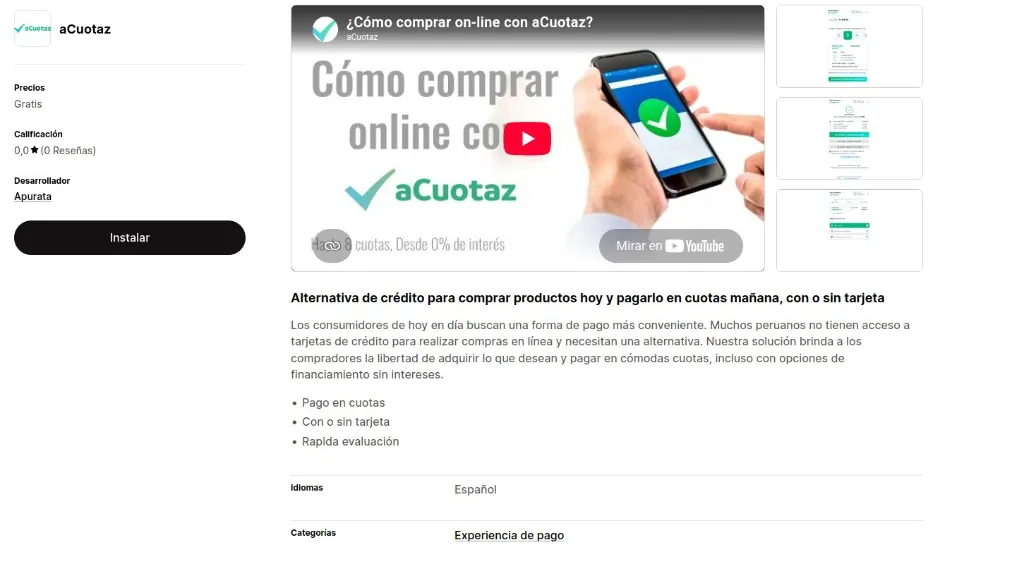
- Open the aCuotaz listing in the Shopify App Store: apps.shopify.com/acuotaz
- Click Instalar.
- Shopify shows Instalar app and the access the app needs. Click Instalar.
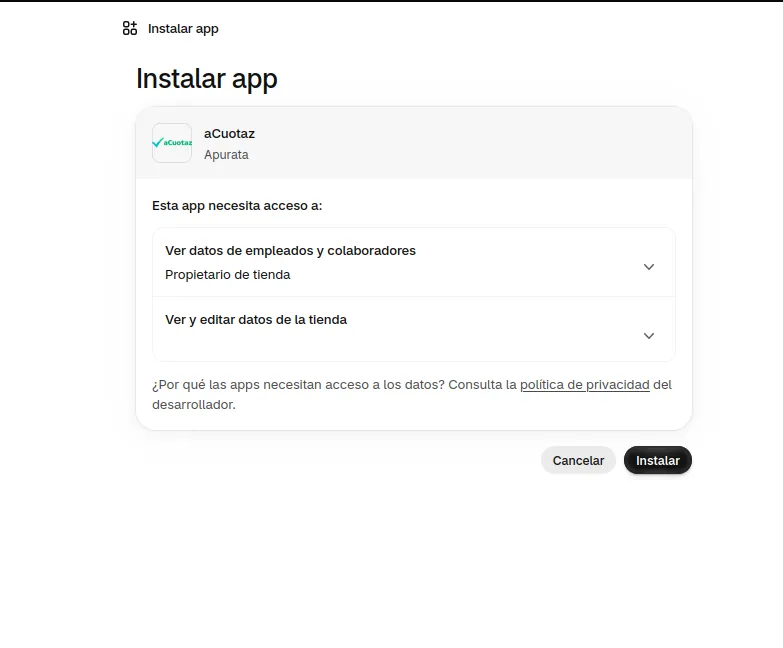
Shopify then opens aCuotaz so you can link the store.
3. Link the store
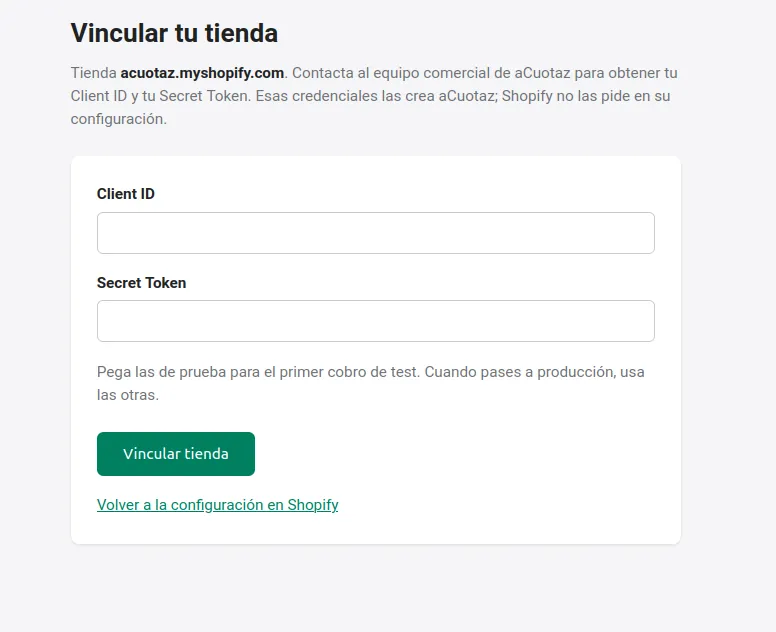
aCuotaz shows Vincular tu tienda. Shopify does not ask for these fields in its own payment settings.
- Paste the Client ID.
- Paste the Secret Token.
- For the first test charge, paste the test pair. When you go live, you paste the production pair on this same screen.
- Click Vincular tienda.
4. Payment settings
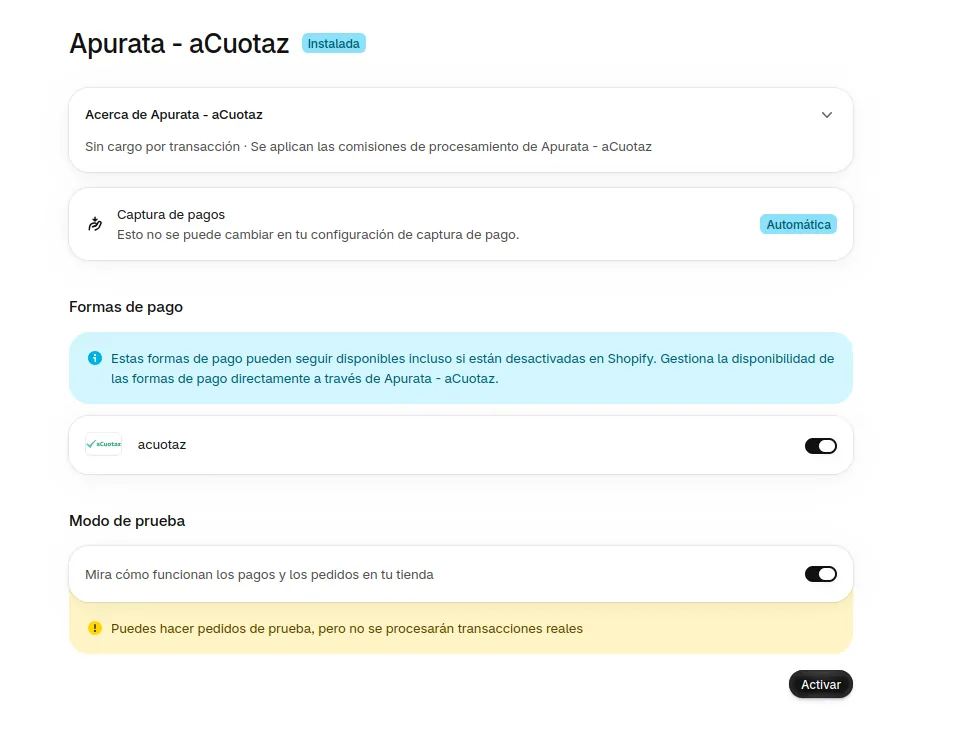
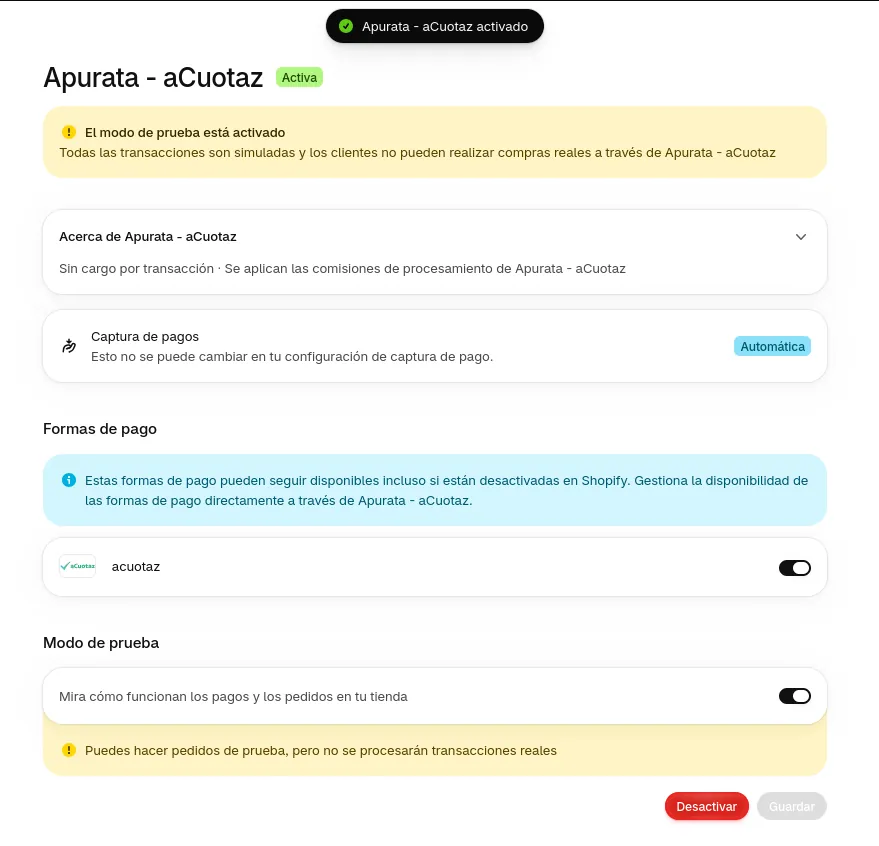
After you link the store, Shopify opens Apurata - aCuotaz. The badge says Instalada until you turn the method on.
On that screen:
- acuotaz is turned on under Formas de pago.
- Modo de prueba is turned on. While it stays on, customers cannot place real orders through aCuotaz.
- Captura de pagos is Automática. Shopify says that capture setting cannot be changed in the payment capture configuration.
Click Activar. Shopify confirms Apurata - aCuotaz activado and the badge changes to Activa. Leave Modo de prueba on.
5. Testing
Card numbers, bank-transfer samples, test DNIs, and the phone and email tokens are in the Testing Guide.
- Open your store checkout as a shopper.
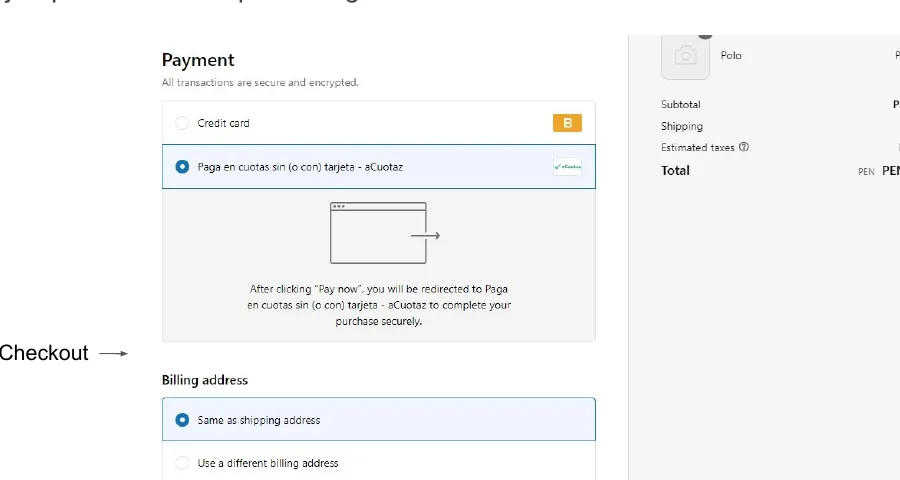
- Confirm Paga en cuotas sin (o con) tarjeta - aCuotaz appears as a payment method.
- Complete a test order. After Pay now, the shopper is redirected to aCuotaz to finish the purchase.
6. Go live
- Confirm the test checkout in Testing works.
- Ask the aCuotaz commercial team for the production Client ID and Secret Token. Turning off test mode is not enough on its own.
- Open the aCuotaz app again from Shopify. Do not uninstall it. Paste the production pair on Vincular tu tienda and click Vincular tienda.
- Back in the payment settings, turn Modo de prueba off and save.
While Modo de prueba stays on, the method only simulates successful and failed transactions. The payment settings screen in Payment settings shows that toggle on.
FAQ
I installed the app and Shopify did not give me a Client ID That is expected. The aCuotaz commercial team creates the Client ID and the Secret Token. Shopify does not.
Customers cannot pay On Apurata - aCuotaz, confirm you clicked Activar and that acuotaz is turned on. In test mode, real purchases are blocked on purpose.
I turned off test mode and orders are still not real aCuotaz has to give you the production credentials, and you have to paste them on Vincular tu tienda, before real orders can be created.
Which store do I select at install? The Shopify store you are integrating. There is no fixed Apurata store to pick.
Need help? Contact the aCuotaz team and say which step you are on.